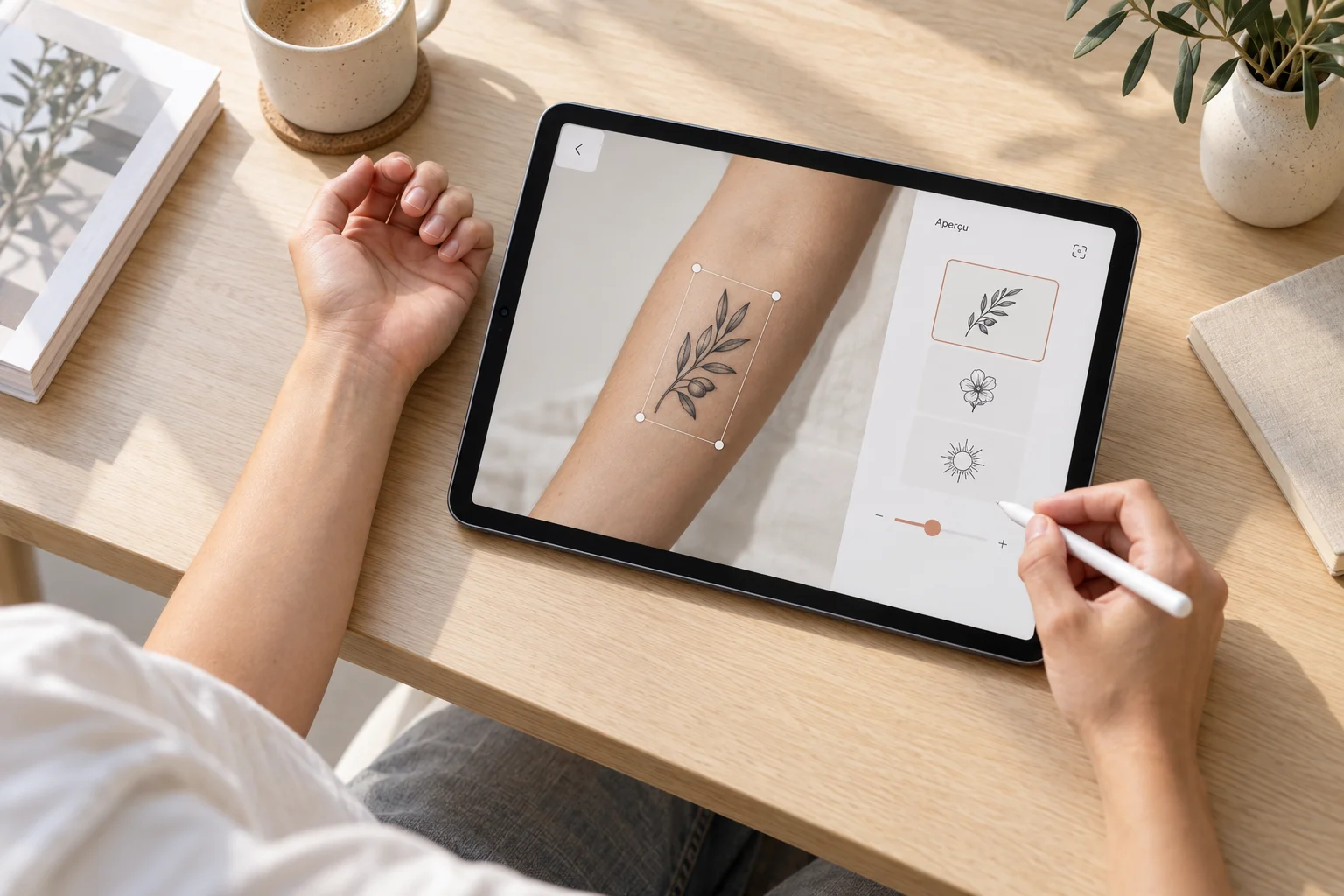
A tattoo simulator lets you preview a design on a photo of your body or through your phone's camera. It helps you compare placement, orientation and proportions before your appointment. The preview is a visual reference: confirm the dimensions and final design with your tattoo artist.
Still choosing your design? You can try Encre Vive to create your tattoo concept. Describe your subject and preferred style, keep a proposal that feels right, then use it as a starting point for previews and your conversation with the artist.
Which type of tattoo simulator suits your project?
The word “simulator” covers several uses. Start with the question you want to answer: where should my design sit, which way should it face, or what should I create?
Photo overlays
Upload your photo and design, then adjust the position, rotation and apparent size. This is useful for comparing two versions side by side while keeping the same starting image.
Augmented reality
The camera displays the design on the chosen area. You can observe its orientation from several viewpoints, within the limits of the app's tracking and your phone's compatibility.
AI design generation
A generator turns your description into artwork; some tools generate directly on a photo. To explore the subject and style first, create your first concept with Encre Vive. Keeping the design separate from the body photo makes it easier to compare placements later.
7 tattoo try-on tools to compare in 2026
These cards compare uses and access terms described by the publishers, whose pages we rechecked on October 4, 2026. They are based on official documentation, without hands-on comparative testing by us. Each card links to the publisher so you can check features, compatible devices and access requirements.
| Tool | Preview and device | Useful for |
|---|---|---|
| InkHunter | Augmented reality · iPhone / iPad | View a design from several angles |
| Tatship | Photo / 3D · Web and mobile | Compare a design on your own photo |
| Inkjin | Augmented reality · Mobile app | Explore placement through your camera |
| Tat Ink | Photo · Browser | Manually adjust an existing design |
| Tatspark | 3D try-on · Web | Explore a design on a curved body area |
| AI Ease | Generation on a photo · Web | Explore an idea that is still taking shape |
| Ink Studio AI | Photo overlay · Browser | Prepare a reference for your consultation |
InkHunter
View a design from several angles. The App Store listing describes augmented reality previews, with the option to import your own artwork or choose from a gallery. It is an option for exploring a design's orientation as you change the camera angle.
What to check: Check device compatibility and the features included before subscribing. A convincing screenshot does not confirm physical dimensions.
Free download with in-app purchases on the App Store.
Tatship
Compare a design on your own photo. Tatship lets you combine your design, or a screenshot of it, with a body photo. The publisher describes its tool as a 3D try-on for exploring size, placement and style.
What to check: Compare several orientations of the same file. A preview marketed as realistic is still a reference to discuss with your tattoo artist.
Free access is advertised; the mobile app offers a three-day trial. Check the renewal terms.
Inkjin
Explore placement through your camera. Inkjin advertises AR tracking for designs from its library or your own imported artwork. The app lets you view the preview from different angles and save a screenshot.
What to check: This is a downloadable app. Check that your phone supports AR, and use several views for areas with pronounced curves.
The publisher advertises free AR try-on, with no sign-up required for previews.
Tat Ink
Manually adjust an existing design. The interface offers classic and AI modes, with separate uploads for the tattoo and body photo. Position, size, rotation and opacity controls let you compare different compositions.
What to check: Distinguish the classic overlay from the AI-generated version: the latter may change details of your artwork. Keep your original reference file.
Classic and AI modes are shown; check the cost of your chosen mode before generating.
Tatspark
Explore a design on a curved body area. Tatspark highlights a 3D try-on mode, PNG uploads and views of different body areas. The publisher says the tool adapts artwork to body contours.
What to check: Check whether the preview uses your photo or a body supplied by the tool. A demonstration model can help you explore ideas, but it does not represent your proportions.
Free access is advertised; check usage and export limits in the tool.
AI Ease
Explore an idea that is still taking shape. Upload a photo, select the area to change with the brush or a description, then describe the tattoo you want. The tool generates a proposal directly in the image.
What to check: This approach suits early visual exploration. To compare an already finished design faithfully, look for a tool that overlays it without reinterpreting the artwork.
The page presents a free tool; check the terms shown when generating and downloading.
Ink Studio AI
Prepare a reference for your consultation. The simulator combines a body photo with your design, then lets you move, resize, rotate and blend the artwork. It recommends a transparent PNG for easier integration.
What to check: The publisher says your photo and artwork stay in your browser. Read its image-handling and export terms before using a personal photo.
The publisher states that previews work without an account and downloading requires sign-in.
A useful starting point: if you already have your design, look for custom file imports, manual adjustments and the option to save the result. A striking image will not help you decide if the artwork changes with every preview.
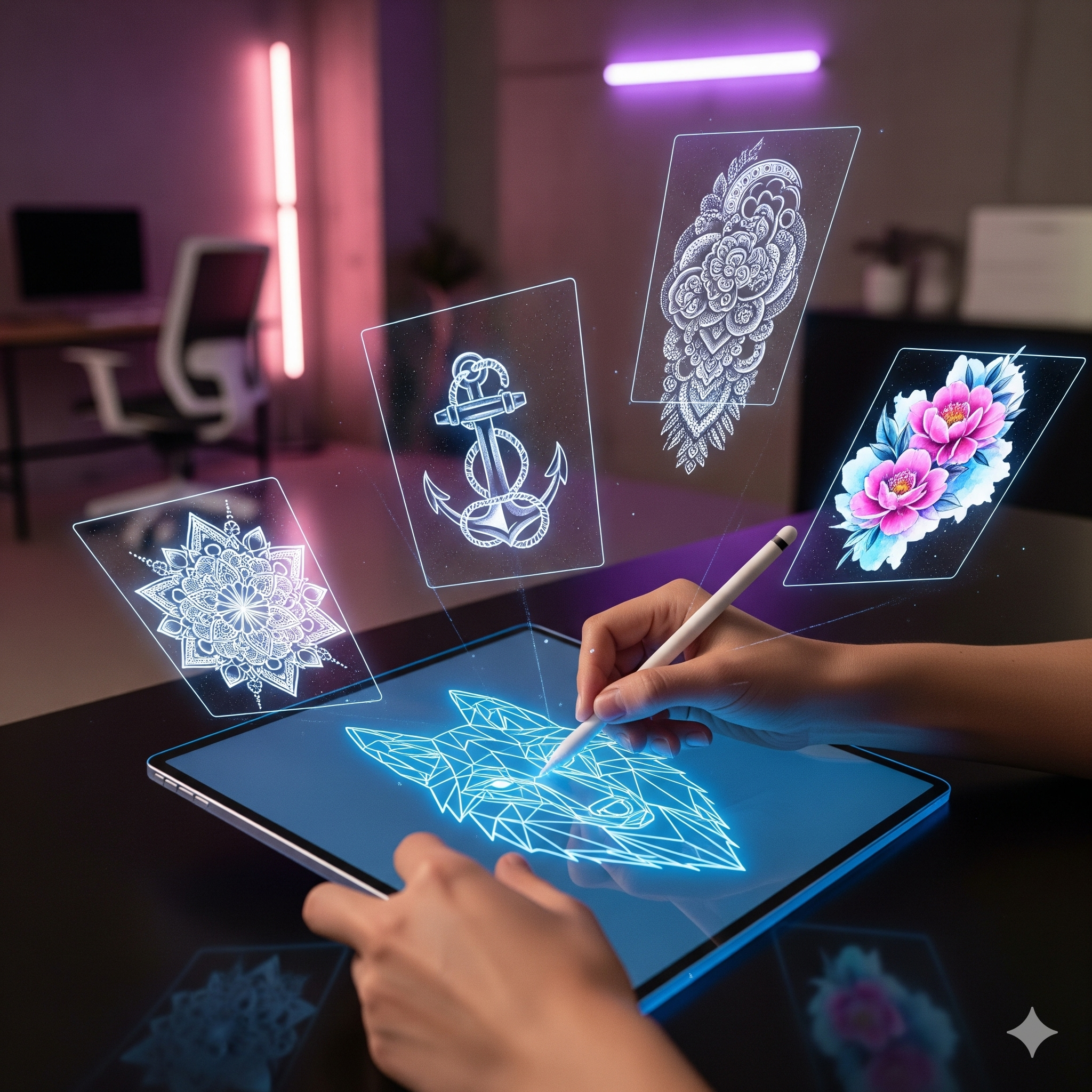
How to try on a tattoo in 5 steps
For a useful comparison, keep the design, lighting and framing as consistent as possible. Change just one variable at a time.
-
Prepare a clear design
Start with sharp artwork, ideally on a plain or transparent background depending on the accepted formats. Avoid a screenshot of a tattoo already distorted around someone else's arm: it carries that perspective into your preview. Keep the original file to check that the lines and lettering stay intact.
If you are starting with an idea, Encre Vive can turn it into a visual concept. For example:
“Vertical olive branch, black and grey tattoo design, clear lines, open composition, plain white background, no text.”
For more on this stage, our comparison of AI tattoo generators explains the different approaches to creating artwork.
-
Take a photo that shows the whole area
Use soft light and a natural posture, without beauty filters. Keep the contours of your arm, leg or shoulder visible: a tight crop makes it harder to judge the design's place in your silhouette. For a curved area, take one front view and a second from the side.
-
Compare two placements and two sizes
Try two areas first, then two sizes on the one you prefer. A vertical branch can follow the forearm; a wider composition needs more space. Our guide to choosing your first tattoo placement also helps you think about everyday visibility.
To estimate scale, place a measured reference in the same plane as the photographed area. Record the intended dimensions in centimetres or inches: screen zoom is not a reliable measurement.
-
Save comparable views
Save your options with simple names such as “forearm, version A” and “forearm, version B”. View them at the same display size, then step back enough to judge the silhouette. With AR, check several angles; with AI, check that it has not added a letter, removed a line or changed your skin.
-
Bring the artwork and previews to your artist
Show your two favourite options along with the intended measurements. The artist can adapt the detail and composition to the area. The stencil, a temporary transfer applied before tattooing, lets you check size and position together on your body while standing in a natural posture.
What can a virtual try-on actually help you decide?
A useful preview helps you pin down your preferences: a design placed higher or lower, an orientation towards the inside of your arm, or a lighter composition. It also gives your artist a concrete reference for understanding your project.
The overall composition
Look at how much space the design occupies, how it balances with the body area and how readable it is at a normal viewing distance. Discuss details that only become visible when you zoom in.
The tattoo on real skin
A mockup cannot predict healed appearance, colour, spacing between lines or ageing. Ask to see healed work that is similar to your project.
For a sleeve or a design wrapping around a calf, one photo cannot show the entire composition. Likewise, placing new artwork over an old tattoo does not confirm that a cover-up is feasible. These projects need an assessment of the area with your artist.
Free access, exports and photos: what should you check?
A free download may include in-app purchases; a trial may turn into a subscription. Check the specific feature you need: importing your artwork, the number of previews, high-resolution downloads and any watermark. A free preview may be enough for comparison even if export options are limited.
For body photos, crop out your face and unnecessary personal details. Read the chosen service's rules on image retention, deletion and reuse. A statement about “browser processing” may apply to the body photo without covering the uploaded design or other operations.
To narrow down the location, compare tattoo placements and forearm compositions. The galleries contain AI illustrations, not previews made with your own body photo.
Create and animate your idea with Encre Vive
Encre Vive creates designs and videos. It does not place your artwork on your own body photo or provide an AR try-on.
Encre Vive helps you explore the design itself: describe an idea to generate a concept, then explore its creative possibilities by animating it in a video. An animal lifting its head or a flower opening can offer another way to experience your artwork.
This animation creates artistic movement within the image. To judge placement and physical dimensions, keep your photo or AR previews and discuss them with your artist. Each stage answers a specific question: which design do I like, where should I wear it, and how can it be tattooed?
Open Encre Vive to explore my tattoo idea.
Frequently asked questions about tattoo simulators
What is the best tattoo simulator?
The choice depends on your goal. To place existing artwork on a photo, look at Tatship, Tat Ink or Ink Studio AI. For camera-based previews, InkHunter and Inkjin offer augmented reality. AI Ease is more suited to exploring an idea generated on a photo. Compare import options, export terms and compatibility with your device.
Is there a free tattoo simulator?
Inkjin advertises free augmented reality try-on, with no sign-up required for previews. Other services advertise free access or a limited trial. Free does not always mean watermark-free exports, unlimited generations or no subscription: check the terms for the feature you want to use.
Can I try a tattoo on my photo without installing an app?
Yes. Tatship, Tat Ink, Tatspark, AI Ease and Ink Studio AI offer web tools. Depending on the tool, you can import existing artwork or generate a design on your photo. Some features may require an account or credits.
Does a tattoo simulator show the actual size?
Not automatically. Zoom, perspective and resizing can change your impression of scale. Use a measured reference on the area to estimate proportions, then confirm the physical dimensions and placement with your artist when the stencil is applied.
Will the virtual preview look exactly like the real tattoo?
No. A preview helps you compare composition and placement, but it does not guarantee healed colour, achievable detail or how the tattoo will age. An AI-generated image may also change letters or details. Bring the original design and your previews to your artist.
What is the difference between generating, simulating and animating a tattoo?
Generating means creating artwork from a description. Simulating means previewing its placement on a photo or through your camera. Animating means creating a video in which the design comes to life. Encre Vive lets you create tattoo concepts and animate them; that animation is a creative interpretation, not a measurement of how a tattoo will look on your body.
How should I prepare a photo for a virtual tattoo try-on?
Take a sharp, unfiltered photo in soft light, with enough distance to show the area's contours. Keep a natural posture and take a second view if the area is curved. Crop out unnecessary personal details before uploading and read the service's image-handling terms.
Sources: the official pages linked in the seven cards, rechecked on October 4, 2026. Ink Studio AI's account and download requirements were clarified during this update. No hands-on comparative test was carried out. Features and access terms may change. Encre Vive publishes this guide and operates the creative studio featured in the article.